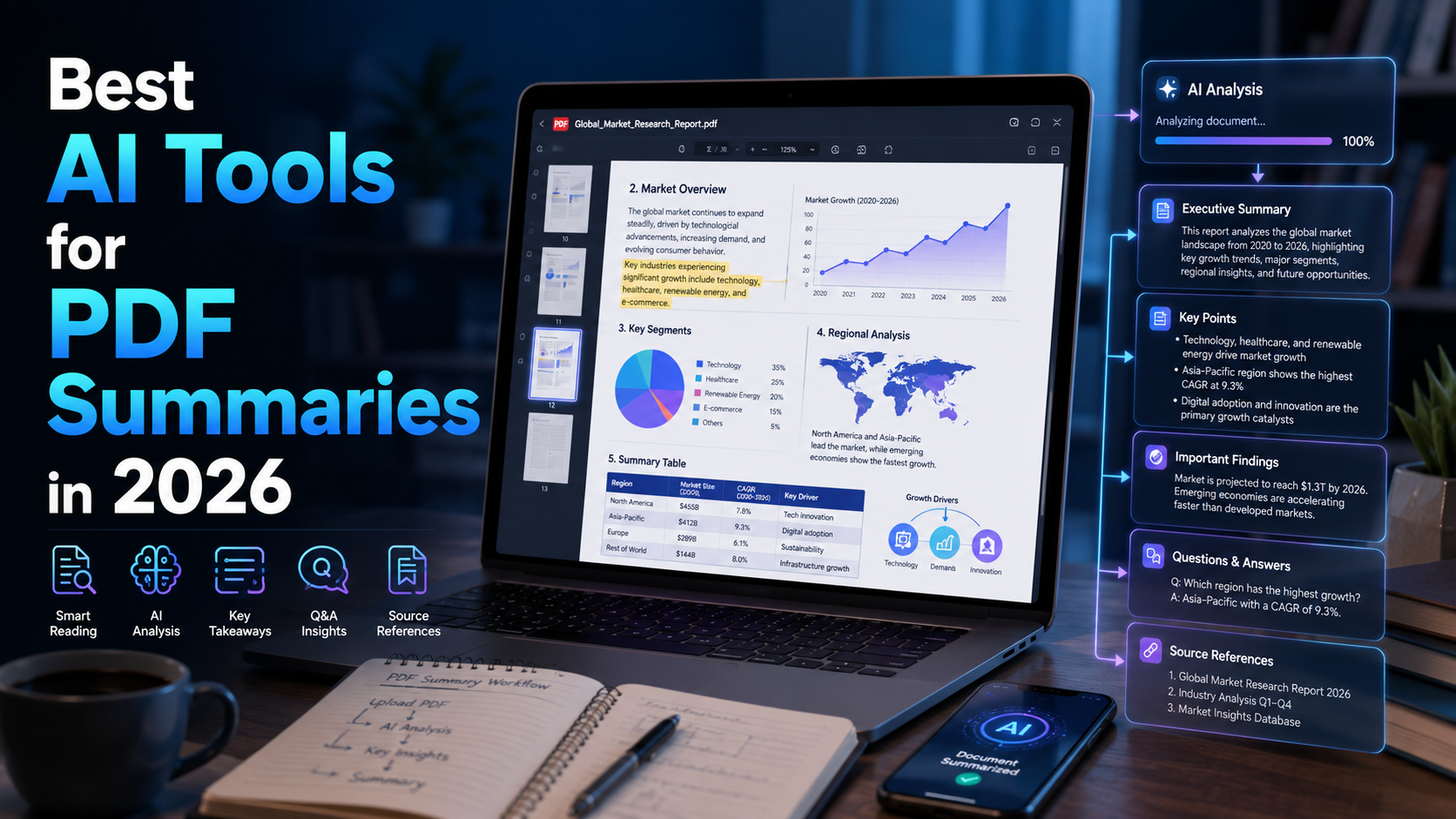
PDF documents have not changed much over the years. The way people deal with them has. A 90-page research report, a contract filled with legal language, or a technical manual that nobody has time to read from cover to cover — these are everyday problems for students, professionals, lawyers, and researchers.
AI PDF tools can help. You upload a document, and the tool extracts the text, identifies key points, answers your questions, and produces a structured summary in seconds. What you get back depends heavily on the tool you choose, what type of document you upload, and how well the AI handles your specific content.
This guide explains the most useful AI PDF tools in 2026, what they actually do well, where they fall short, and which is right for your workflow.
Quick Comparison Table
| Tool | Best For | PDF Chat | Source Citations | Long PDFs | Multi-PDF | Free Plan | Starting Price |
|---|---|---|---|---|---|---|---|
| Claude | Long docs, visual PDFs | ✓ | Partial | ✓ (100 pages) | ✓ (20 files) | Yes | Included in free |
| ChatGPT | General use, drafting | ✓ | Partial | ✓ | ✓ (10 files) | Yes (limited) | ~$20/mo Plus |
| Gemini | Large files, Google users | ✓ | Partial | ✓✓ (2M tokens) | ✓ | Advanced required | $19.99/mo |
| NotebookLM | Research, multi-source | ✓ | ✓✓ (grounded) | ✓ | ✓✓ (50 sources) | Yes | Free / $7.99/mo |
| Adobe Acrobat AI | PDF editing + AI | ✓ | ✓ | Moderate (120 pages) | ✓ (up to 100 files) | No | ~$25/mo combined |
| SciSpace | Academic papers | ✓ | ✓ | ✓ | ✓ | Yes (limited) | $12/mo |
| ChatPDF | Quick single-doc Q&A | ✓ | ✓ (page-level) | Moderate | No (free) | Yes (2 PDFs/day) | $19.99/mo |
| Humata | Multi-doc comparison | ✓ | ✓ | Moderate | ✓ | Yes (60 pages) | $1.99/mo (student) |
| AskYourPDF | Flexible model choice | ✓ | ✓ | ✓ | ✓ | Yes | $11.99/mo |
| UPDF AI | Editing + AI value | ✓ | Partial | ✓ | ✓ | Limited | $35.99/yr + AI add-on |
*Pricing verified from public sources as of mid-2026. Always confirm on official vendor pages before purchasing.*
What Is an AI PDF Summarizer?
When you upload a PDF to an AI tool, the tool first extracts the text content. For digitally created PDFs, this is straightforward. For scanned documents — pages photographed or photocopied and saved as images — the tool needs OCR (optical character recognition) to convert the visual text into readable data. OCR quality significantly affects summary accuracy.
Once text is extracted, the AI reads it, identifies the main topics, key arguments, conclusions, and action items, and produces a summary. Most tools also let you ask follow-up questions in plain language: "What were the main findings?" or "Is there a termination clause?"
There is an important distinction between tools that simply summarize extracted text versus tools that understand document structure. A tool that understands structure can identify that section 4.2 is the methodology, that a table on page 18 contains the key results, and that the figures are referenced later in the discussion. That kind of understanding produces more useful summaries than one that treats the document as a long block of text.
Source citations — where the tool tells you exactly which page or paragraph its answer came from — are critical for any work where you need to verify a claim.
Four Types of AI PDF Tools
Understanding which category a tool belongs to helps you choose correctly.
General-purpose AI assistants (Claude, ChatGPT, Gemini) can analyze PDFs you upload, but their primary design is broader. They offer great flexibility and conversational depth, but may not always cite specific pages the way dedicated tools do.
Source-grounded research tools (NotebookLM, SciSpace) are built specifically for document-grounded answers. They answer only from what you give them, reducing the risk of the AI making things up. Citations back to the source are central to how they work.
Dedicated PDF applications (Adobe Acrobat AI Assistant, UPDF AI, Foxit AI) combine AI summarization with full PDF editing, annotation, OCR, and document management. The AI is one feature in a broader tool, not the whole product.
Dedicated PDF chat tools (ChatPDF, Humata, AskYourPDF) focus on the upload-and-question workflow. They are fast and simple, designed for users who primarily want to ask questions about a document they just uploaded.
Best AI Tools for PDF Summaries in 2026
Claude
Overview
Claude — running Claude Opus 4.8 — is the strongest general AI assistant for long, complex documents. It reads PDFs as a multimodal document, which means it can process visual elements, not just extracted text.
Key Features
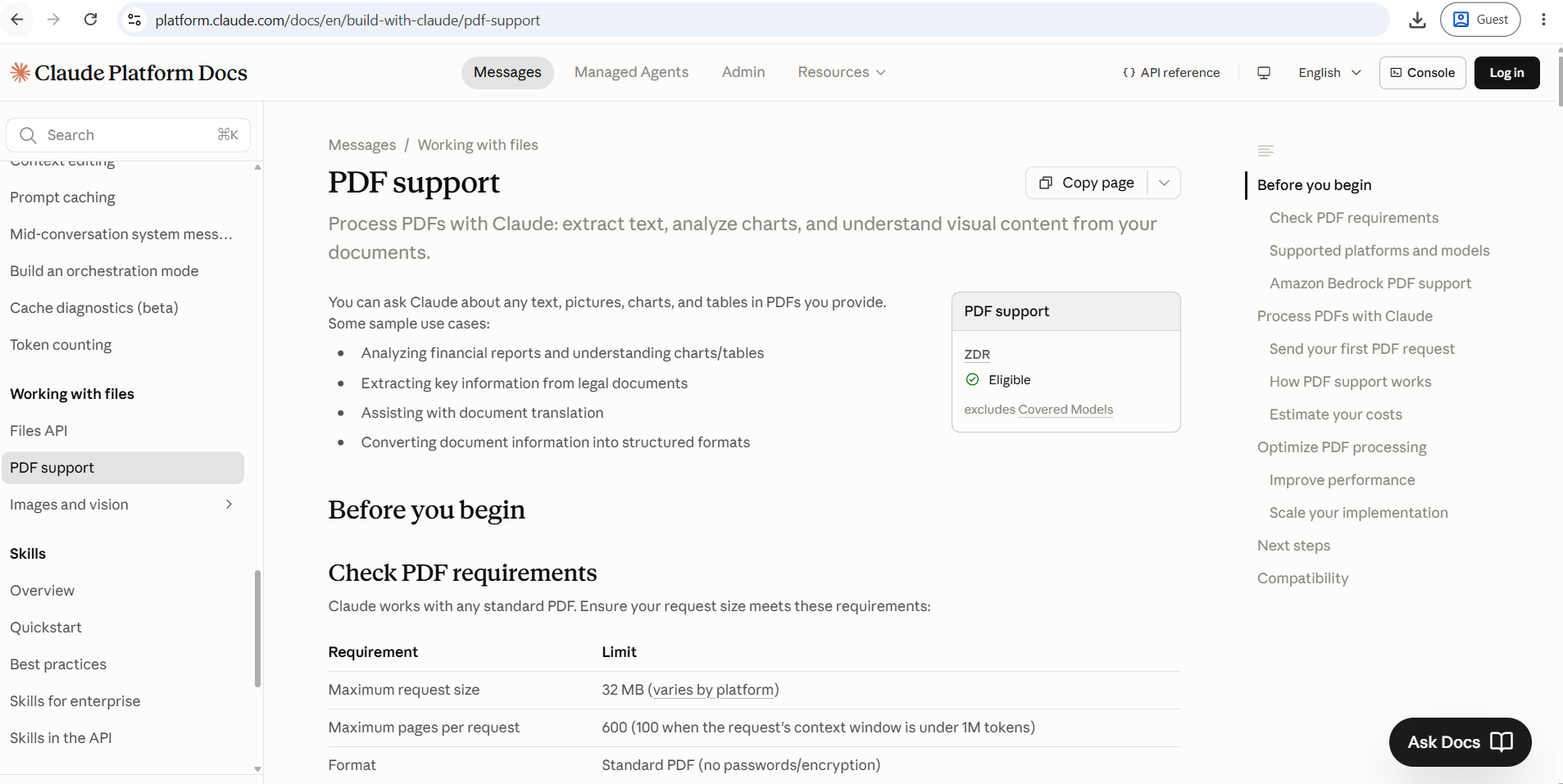
- For PDFs under 100 pages, Claude reads visual elements like charts and graphics directly rather than just OCR-ing them
- Claude accepts up to 20 files per conversation — more than ChatGPT's 10 or Gemini's 10
- 200,000-token context window handles very long documents
- Claude Projects lets paid users store persistent reference documents across conversations
PDF Summary Quality
Claude produces well-structured, readable summaries and can follow specific formatting instructions. Ask it for bullet points, an executive summary, a section-by-section breakdown, or key arguments — it handles all of them well.
Source Citations and Verification
Claude does not always cite specific page numbers automatically. You can ask it to reference specific sections, but it does not default to page-level citations the way dedicated PDF tools do. For documents where you need precise source linking, this is a limitation.
Long PDF Performance
PDFs are capped at 32MB and 100 pages per file for visual processing in Claude.ai. Documents over that limit require splitting. For shorter but dense documents, Claude's comprehension is consistently strong.
Visual PDF Support
Claude reads charts, tables, diagrams, and images in PDFs under 100 pages using multimodal analysis. For longer documents, it falls back to text extraction.
Pros
- Best visual PDF understanding of any general AI assistant in its page range
- Flexible instruction-following for summary format
- Handles up to 20 files in one conversation
- Strong reasoning on complex documents
- Works across free and paid plans
Cons
- 100-page / 32MB per-file limit is restrictive for large reports
- Does not auto-cite specific page numbers
- No dedicated PDF workspace or search across past uploads
Free Plan
Claude's free tier allows PDF uploads with the same 100-page limit. The number of messages available is lower than paid plans.
Pricing
Free plan available. Claude Pro at approximately $20/month (verify current pricing at anthropic.com), with access to Claude's most capable models.
Privacy Considerations
Anthropic processes uploaded files on its servers. Claude Team and Enterprise plans offer data controls that exclude files from model training. Review Anthropic's current privacy policy before uploading sensitive documents.
Google NotebookLM
Overview
NotebookLM is one of the most useful research tools available in 2026, and it is free to start. It is essentially a closed RAG system — you upload your sources, and it generates responses grounded solely in that specific data. This grounded approach reduces the risk of hallucinations.
Key Features
- NotebookLM accepts PDFs, Google Docs, Google Slides, websites, YouTube videos, and audio files — and reads across all of them in one notebook
- Source citations are built into every answer
- Free plan: 100 notebooks, 50 sources per notebook, 50 chat questions per day
- Audio Overviews generate podcast-style summaries of your documents
PDF Summary Quality
NotebookLM's summaries are directly grounded in what you upload. The answers stay close to the source material, which is valuable for research but can feel less generative than Claude or ChatGPT. It does not invent things, which is the point.
Source Citations and Verification
This is NotebookLM's standout feature. Answers stay grounded in the documents you provide and include source references, making it easy to verify claims. You can click through to the specific passage in the original document.
Long PDF Performance
Each source holds up to 500,000 words or 200MB, with no page limit on PDFs. This makes it one of the most capable free tools for long documents. A single file over 200MB or 500,000 words will not import on any tier.
Visual PDF Support
NotebookLM uses Gemini's multimodal understanding to process uploaded files. Tables and structured content are generally well handled. Complex charts may be summarized descriptively rather than analytically.
Pros
- Source-grounded answers with click-through citations
- Free plan is genuinely useful for most students and researchers
- Mix PDFs, Google Docs, YouTube videos, and audio in one notebook and ask questions across all of them
- No page limit per PDF (within the 200MB/500K word cap)
- Generates Audio Overviews from uploaded documents
Cons
- No cross-notebook search — you cannot search across multiple notebooks simultaneously
- 50 chat questions per day on the free plan
- Files processed on Google's servers — not ideal for highly confidential material
- Works best in Google's ecosystem
Free Plan
100 notebooks, 50 sources per notebook, 50 chat questions per day. No credit card required. Audio and Video Overviews included.
Pricing
Free plan is the most capable in the category. Plus at $7.99/month raises source limits. Pro at $19.99/month gives 300 sources per notebook. Ultra from $99.99/month for the highest limits.
Privacy Considerations
Files are processed on Google servers. NotebookLM is not a backup system — keep original PDFs elsewhere. Access can also vary by region and account type. Review Google's current privacy documentation before uploading sensitive material.
ChatGPT
Overview
ChatGPT is the best all-rounder for reading and drafting from a PDF. Its PDF support has matured significantly. Most paid-plan users can upload files directly and receive summaries, analysis, or drafted responses based on document contents.
Key Features
- PDF upload directly in chat, up to 512MB per file
- Advanced Data Analysis can run Python code on document contents
- ChatGPT Projects stores files persistently across conversations
- Available on web, iOS, and Android
PDF Summary Quality
Strong and flexible. ChatGPT follows detailed formatting instructions well and can produce summaries at any level of detail. It is also good at drafting documents based on PDF contents — something most dedicated PDF tools do not offer.
Source Citations and Verification
Citation behavior varies. ChatGPT does not always cite specific pages. You can ask it to reference sections, but page-level citations are less consistent than dedicated PDF chat tools.
Long PDF Performance
ChatGPT handles large files in theory, but practical limits depend on which plan you use. Heavy documents can hit context limits.
Visual PDF Support
ChatGPT with GPT-4o reads images, tables, and charts embedded in PDFs with reasonable accuracy.
Pros
- Strong drafting ability alongside summarization
- Large file size limit (up to 512MB per file)
- Advanced Data Analysis can process tables and structured data computationally
- Free plan allows PDF uploads with GPT-4o (limited uses)
Cons
- File limits vary by plan and use rolling windows rather than simple daily resets
- Page-level citations are inconsistent
- No dedicated PDF workspace or cross-document search
Pricing
Free plan with limited GPT-4o access. ChatGPT Plus at approximately $20/month. Verify current limits at openai.com as plans change frequently.
Adobe Acrobat AI Assistant
Overview
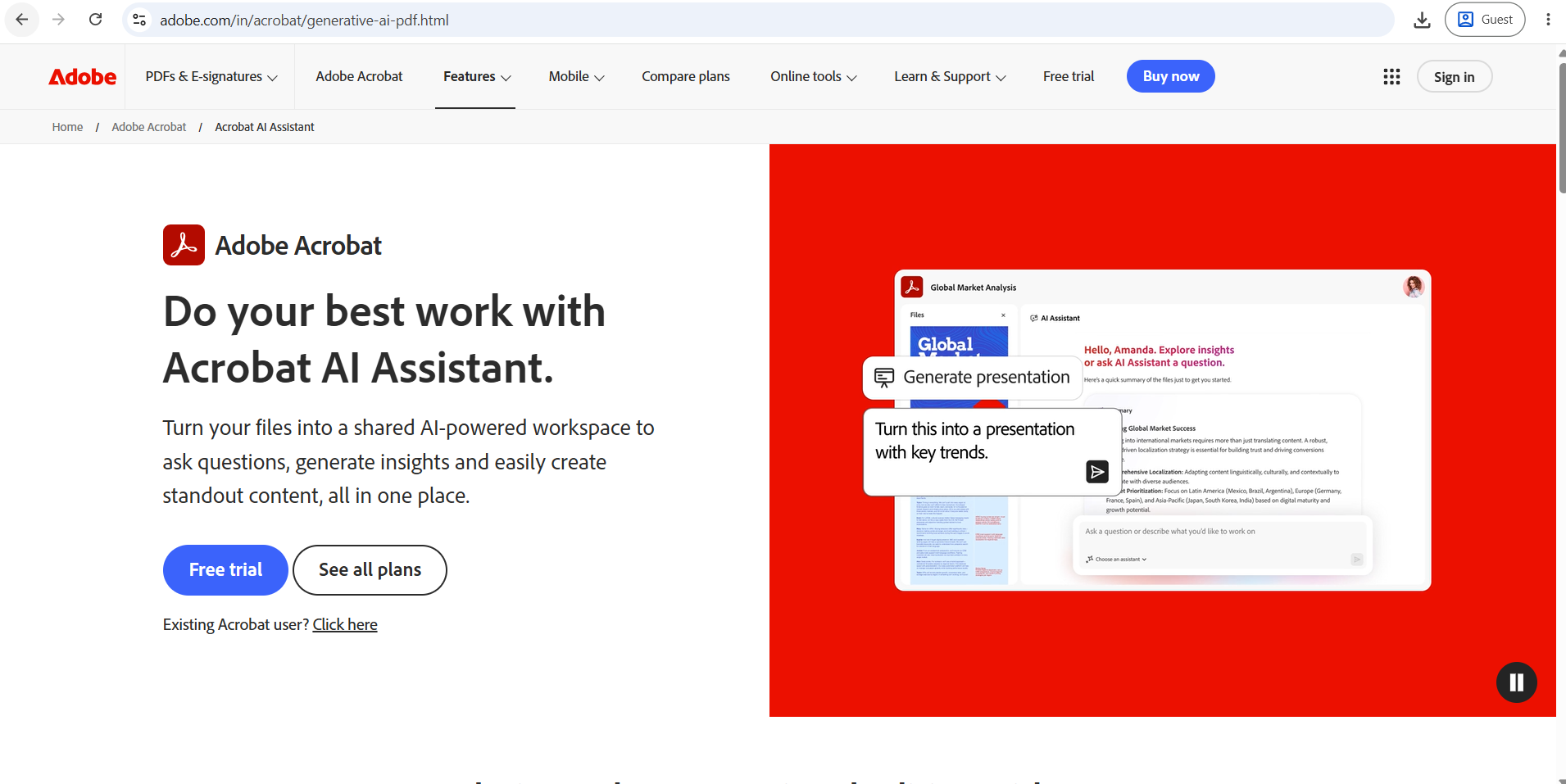
Adobe Acrobat AI Assistant is the leading option for professionals who need both PDF editing and AI summarization in one tool. It reads a single PDF or up to 100 combined files and produces structured summaries, comparison tables, and audio overviews, all with citations linking back to the source paragraph.
Key Features
- Conversational PDF chat with page-level source citations
- Multi-file analysis across up to 100 documents
- Built into a full PDF editor with OCR, annotations, and signing
- Runs on the same generative AI technology that powers ChatGPT
PDF Summary Quality
Well-structured and citation-backed. Particularly useful for contracts, legal documents, and business reports where exact references matter.
Long PDF Performance
Adobe Acrobat AI Assistant caps at 120 pages per document. This is a meaningful constraint for very long reports or books. For most business and legal documents, 120 pages covers the majority of use cases.
Visual PDF Support
Acrobat's underlying OCR is among the strongest in the market. Tables, scanned pages, and mixed-format documents are handled reliably.
Pros
- Page-level citations with source links
- OCR quality is excellent for scanned documents
- Full PDF editing, annotation, and signing in the same tool
- Multi-file analysis across up to 100 documents
Cons
- The AI Assistant add-on runs $4.99 to $9.99/month, but requires an Acrobat Pro subscription at roughly $19.99/month, so the real combined cost lands closer to $25 to $30/month
- The 120-page document limit is a significant constraint
- Expensive compared to alternatives if you only need the AI features
Pricing
Acrobat Pro at approximately $19.99/month, AI Assistant as an add-on from $4.99/month. Effective combined cost approximately $25–$30/month. Verify at adobe.com.
SciSpace
Overview
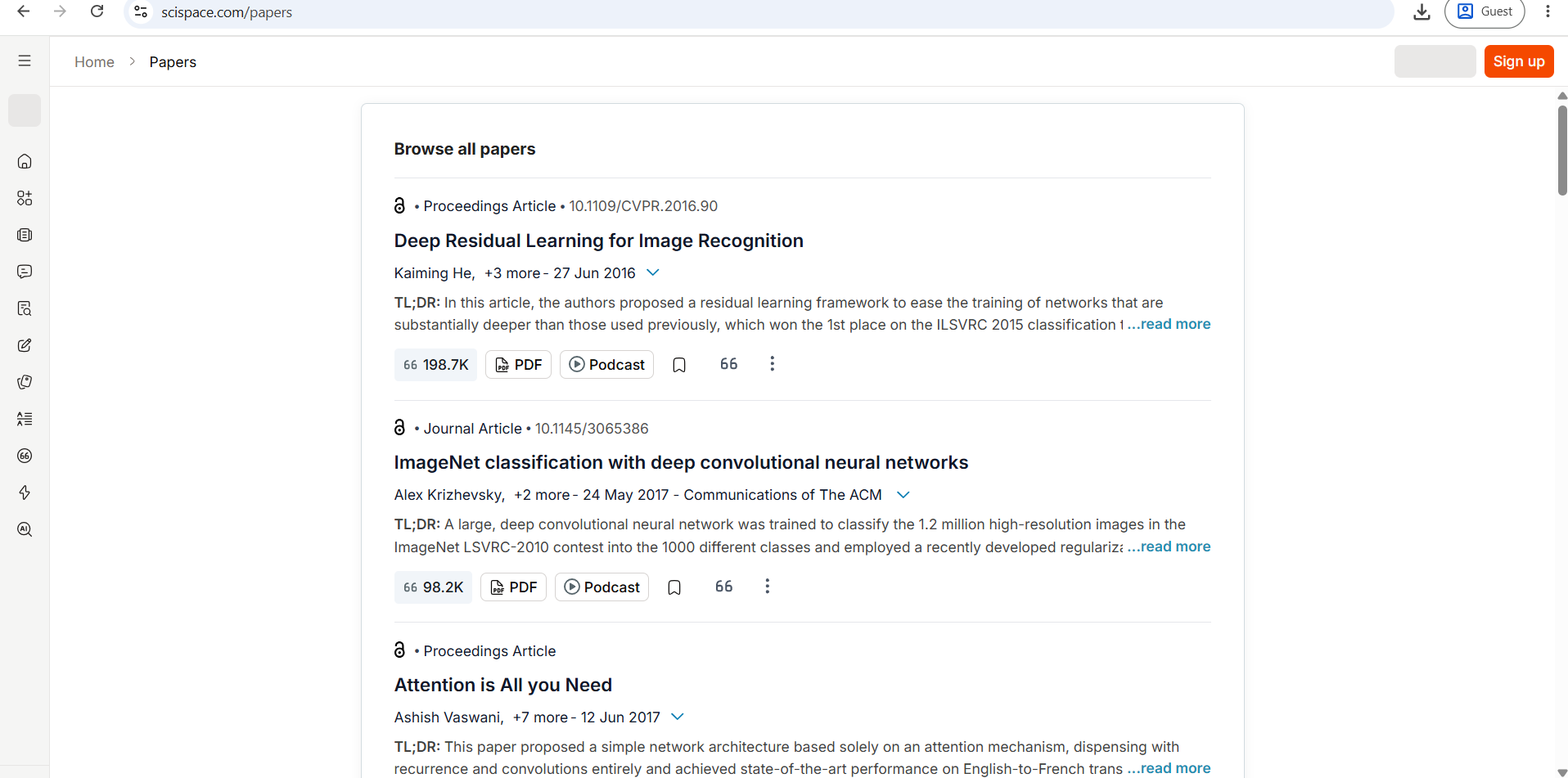
SciSpace is purpose-built for academic and scientific literature. It connects to a database of 220 million+ papers, so you can search, read, and chat with research documents in one place. The platform excels at explaining complex academic language in simpler terms.
Key Features
- Explains equations, jargon, and technical tables inline while reading
- Literature review tools find related papers and trace citations
- Citation-backed answers with page references
- Side-by-side PDF and chat interface
PDF Summary Quality
Excellent for academic papers. It identifies the methodology, findings, limitations, and conclusions in a structured way that matches how researchers think about papers.
Pros
- Explains dense academic language without losing accuracy
- Connects single papers to a broader literature database
- Citation-backed answers
- Deep Review synthesizes findings across multiple papers
Cons
- Takes longer to process documents compared to faster tools like ChatPDF
- Less useful outside academic or technical contexts
- Free credit limits are not always clearly explained upfront
Pricing
Free Basic plan with limited daily usage. Premium at $20/month or $12/month billed annually. Teams plan at $18/seat/month.
ChatPDF
Overview
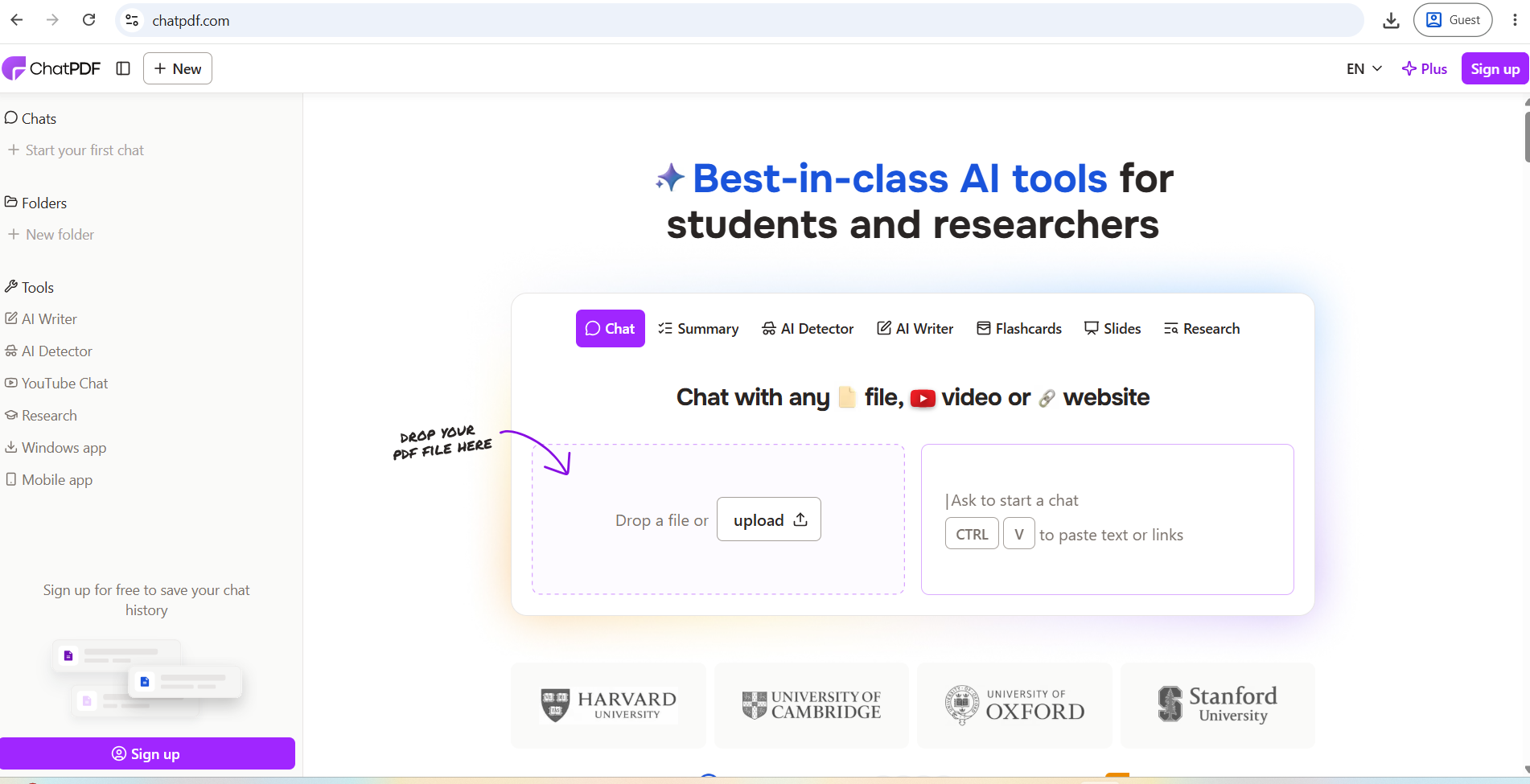
ChatPDF is one of the fastest ways to start a conversation with a single document in 2026. The site lets you drag and drop a file and begin asking questions within seconds, with no account required for basic use.
Key Features
- Instant upload and chat — no account needed for basic use
- Every answer includes clickable citations that scroll directly to the source passage
- Side-by-side document and chat view
- OCR support for scanned PDFs
PDF Summary Quality
Fast and practical for straightforward documents. Works best when the answer is present explicitly in the text. Less reliable for questions that require synthesis across a very long document.
Long PDF Performance
The free tier handles PDFs up to 120 pages. The Plus plan at $19.99/month handles up to 2,000 pages per document.
Pros
- Fastest setup of any tool — drag, drop, ask
- Page-level citations by default
- No account required for basic use
- Good OCR for scanned documents
Cons
- Free tier limited to 2 PDFs per day, 120 pages each, and 50 questions per document
- Cannot analyze multiple PDFs simultaneously on the free plan
- Feature parity with frontier chatbots is shrinking — tools like Claude and ChatGPT Plus now handle PDFs at comparable quality
Pricing
Free (2 PDFs/day, 120-page limit). Plus at $19.99/month for unlimited uploads and 2,000-page files.
Humata
Overview
Humata is built for comparing findings across multiple documents. Its free plan covers 60 pages and 10 questions, with a $1.99/month student plan raising the page limit — making it one of the most affordable options for students.
Key Features
- Multi-document upload and comparison
- Team collaboration and sharing with permissions
- Source-cited answers
- Page-level citation links
Pros
- Multi-document comparison is genuinely useful for literature reviews
- Very affordable student pricing
- Team features and sharing with controlled permissions
Cons
- Humata Expert handles 500 pages per month across all documents — a meaningful constraint for heavy users
- Less suitable for very large single documents
- Interface is less polished than newer tools
Pricing
Free (60 pages, 10 questions). Student plan from $1.99/month. Expert plan with higher page limits at higher tiers — verify at humata.ai.
UPDF AI
Overview
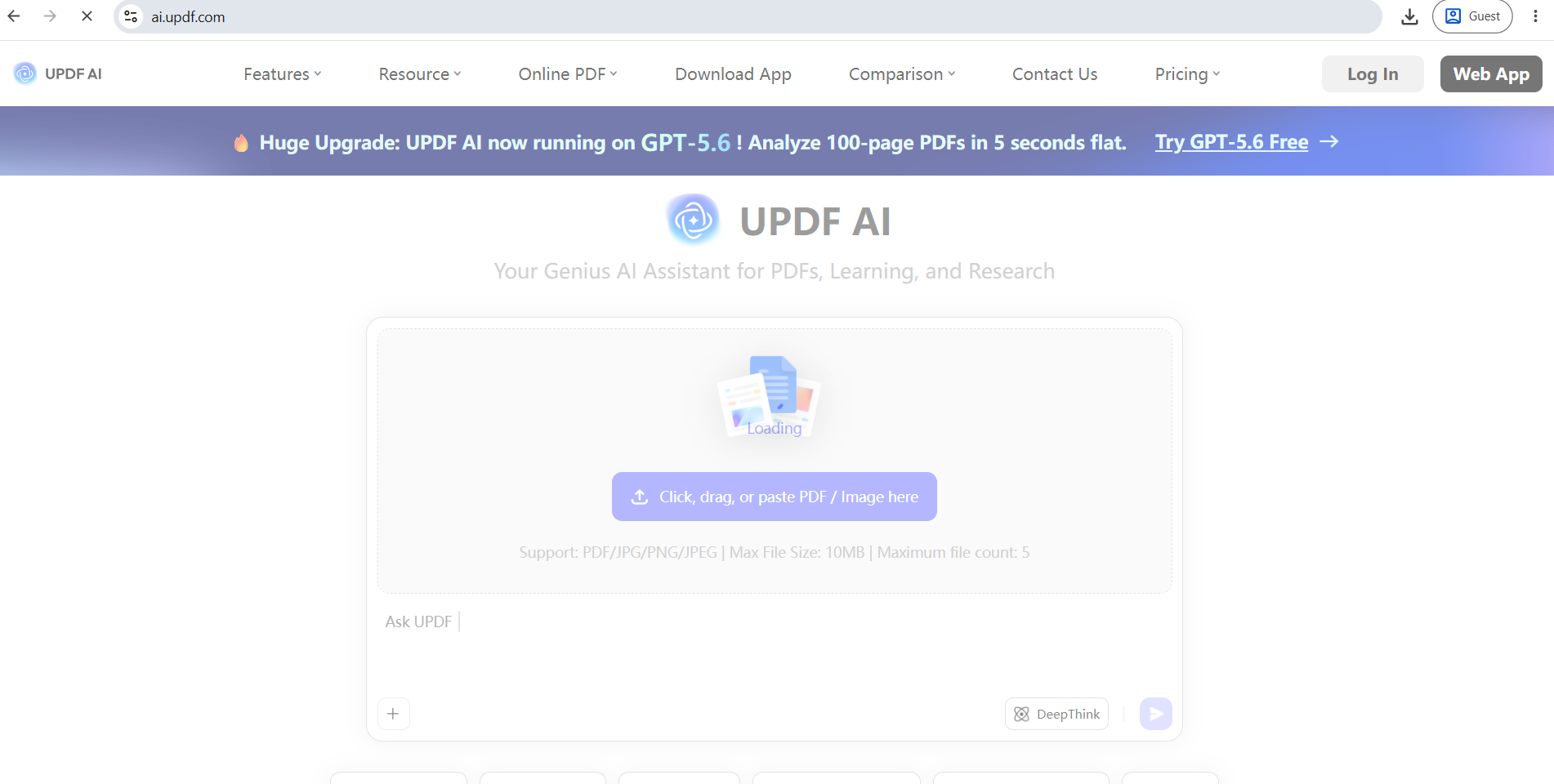
UPDF is a modern PDF editor that includes a capable AI assistant at a significantly lower price than Adobe Acrobat. UPDF Pro costs approximately $35.99/year, with the AI add-on at $25/year — making the combined cost a fraction of what Adobe charges.
Key Features
- Full PDF editing (text, images, links) across Windows, Mac, iOS, and Android
- AI chat, summarization, and translation
- Online version available without installation
- Cross-platform with one license for multiple devices
Pros
- Strong value for money versus Adobe Acrobat
- Editing, annotation, OCR, and AI in one app
- Available on all major platforms including mobile
Cons
- AI features are less specialized than dedicated research tools
- Source citations are not as strong as Adobe Acrobat AI or dedicated PDF chat tools
- Less established than Adobe for enterprise procurement
Pricing
UPDF Pro approximately $35.99/year. AI add-on approximately $25/year. Verify current promotions at updf.com — discounts are frequently available.
Best AI PDF Tools by Use Case
| Use Case | Recommended Tool |
|---|---|
| Best Overall | NotebookLM (research) / Claude (complex docs) |
| Best Free Option | NotebookLM |
| Best for Students | SciSpace or Humata (student plan) |
| Best for Research Papers | SciSpace or NotebookLM |
| Best for Academic Research | NotebookLM (multi-source) |
| Best for Long PDFs | Gemini (largest context) or NotebookLM (no page limit) |
| Best for Multiple PDFs | NotebookLM or Adobe Acrobat AI |
| Best for Business Reports | Claude or Adobe Acrobat AI |
| Best for Legal Documents | Adobe Acrobat AI (OCR + citations) |
| Best for Charts and Tables | Claude (visual analysis) or Adobe Acrobat AI (OCR) |
| Best Source Citations | NotebookLM |
| Best PDF Editing + AI | Adobe Acrobat AI (premium) / UPDF AI (value) |
| Best "Chat With PDF" Tool | ChatPDF (speed) or AskYourPDF (flexibility) |
| Best for Google Users | NotebookLM or Gemini |
| Best Value for Money | NotebookLM (free) / UPDF AI (paid) |
Best Free AI PDF Summarizers
Three tools offer genuinely useful free plans without requiring a credit card.
NotebookLM (Google) is the strongest free option. You get 100 notebooks, 50 source documents per notebook, and 50 chat questions per day at no cost. The 200MB per-file limit and 500K word per-source cap are generous enough for most research needs. No page limit on PDFs.
ChatPDF gives 2 PDF uploads per day with up to 120 pages each and 50 questions per document. No account is required for basic use. It is fast and provides page-level citations.
Claude (Anthropic) allows PDF uploads on the free plan within the standard 100-page and 32MB limits. The number of messages is lower on the free tier, but the quality of analysis is consistent.
Humata gives 60 pages and 10 questions per month for free — useful as a trial, but very limited for regular use.
ChatGPT's free plan includes some GPT-4o access with PDF uploads, but the rolling-window limit system means availability varies.
"Free" does not mean unlimited. Most free plans restrict daily uploads, file sizes, or the number of questions. Test with real documents before assuming a free plan meets your needs.
AI PDF Summarizers for Research Papers
Research workflows have specific needs that general AI tools do not always meet. When working with academic papers, you need:
- Cited answers that link to specific sections (methodology, results, limitations)
- Explanation of technical terminology and equations
- The ability to compare findings across multiple papers
- Reliability — an incorrect summary of a study's conclusions can cause real problems
SciSpace leads here for individual papers. It explains jargon inline, provides citation-backed answers, and connects papers to a broader academic database. Its Deep Review feature synthesizes findings across multiple papers, which saves significant time in literature reviews.
NotebookLM is the strongest free option for multi-paper research. Upload up to 50 papers in one notebook (free tier), ask questions across all of them, and receive answers that cite exactly which document they came from.
Humata is worth considering for students comparing several papers simultaneously, especially at its $1.99/month student price point.
For any research work, always verify important findings, statistics, and claims against the original paper. AI tools can misinterpret complex data, especially in tables and figures.
Can AI Summarize Scanned PDFs?
Most AI PDF tools handle scanned documents, but quality varies.
Scanned PDFs are images of text rather than actual text. Before AI can summarize them, OCR must convert those images to readable characters. Poor scan quality — blurry pages, unusual fonts, handwriting, or complex layouts — produces poor OCR output, which in turn produces poor summaries.
Adobe Acrobat AI Assistant has the strongest OCR of any tool in this comparison, given Adobe's decades of PDF expertise. For legal documents, archived materials, and scanned contracts, this matters.
Claude handles scanned PDFs through text extraction, with visual analysis for documents under 100 pages that may help with cleaner layout comprehension.
ChatPDF includes OCR support for scanned documents. Quality is reasonable for standard print quality.
NotebookLM handles scanned PDFs that import successfully. Very large scanned files (over 200MB) will not import.
For important scanned documents, always review the extracted text quality before trusting the summary. A test question with a known answer from the document is a quick way to check accuracy.
Are AI PDF Summaries Accurate?
Modern AI tools like GPT-4, Claude, and Gemini deliver accurate summaries in 90%+ of cases. But they can miss details or rarely hallucinate. Always verify important facts against the original.
The most common accuracy problems are:
Hallucination — the AI states something that is not in the document. Source-grounded tools like NotebookLM significantly reduce this risk because they only answer from what you upload.
Missing details — a summary focuses on what the AI judges to be important, which may not be what you needed. Section-by-section summaries and targeted follow-up questions reduce this.
Numerical mistakes — figures, percentages, dates, and statistics should always be verified against the original. AI tools can transpose numbers or misread tables.
Interpretation errors — the AI may summarize a study's finding correctly but miss an important caveat in the same paragraph.
The practical rule: use AI summaries to understand a document quickly, then verify any important number, conclusion, or claim against the original before acting on it.
Privacy and Security When Uploading PDFs
Every tool in this guide processes your uploaded documents on its servers. That has important implications for sensitive material.
Personal documents (financial records, medical reports, legal documents) should not be uploaded to free consumer tools without reviewing the tool's data retention and AI training policy. Many free tools use uploaded data to improve their AI models by default.
Business documents (contracts, strategy reports, financial results, client data) typically fall under company policy that may restrict what tools you can use. Check with your organization before uploading.
Research materials — for most academic content, the main risk is less about privacy and more about whether you have permission to share pre-publication work with third-party AI tools.
For higher sensitivity documents:
- Claude Team and Enterprise, ChatGPT Enterprise, and Microsoft 365 Copilot offer data controls that exclude files from model training
- Adobe Acrobat AI has enterprise controls and established security practices
- Never upload confidential PDFs to a free consumer tool without checking its data policy
Review the current privacy policy of any tool before uploading sensitive materials. Policies change, and this article cannot substitute for reading the actual terms.
10 Tips for Better PDF Summaries With AI
- Tell the AI what type of summary you need — "executive summary," "bullet list of findings," or "methodology overview" produces much better output than just "summarize this."
- Ask for section-by-section summaries for long documents rather than one overall summary.
- Request key findings and supporting evidence separately to see how well the AI distinguishes conclusions from the data behind them.
- Ask for page or section references in every response — if the tool supports it, this is the fastest way to verify important points.
- Ask the AI to distinguish facts from the authors' interpretations — especially useful for research papers and opinion-heavy reports.
- Upload related documents together when you need to compare findings across sources.
- Use follow-up questions to dig deeper — a single initial summary is rarely enough for important documents.
- Verify numbers, dates, and statistics against the original before using them anywhere.
- Do not upload confidential files without checking the tool's privacy policy — especially on free tiers.
- Keep the original PDF available — AI summaries are faster, but the original document remains the authoritative source.
Which AI PDF Tool Should You Choose?
Student — Start with NotebookLM for free multi-source research. Use SciSpace for academic papers that need technical explanation. Try Humata's $1.99/month student plan for multi-paper comparison.
Researcher — NotebookLM for source-grounded multi-document analysis. SciSpace for deep literature review and citation synthesis.
Teacher — NotebookLM to build course material notebooks from multiple sources. Claude for generating summaries and discussion questions from uploaded texts.
Business professional — Claude for complex reports with charts and tables. Adobe Acrobat AI if you are already in the Adobe ecosystem and need editing alongside summarization.
Lawyer — Adobe Acrobat AI for strong OCR, page-level citations, and multi-document analysis within a trusted PDF editing environment.
Analyst — Claude or ChatGPT Plus for flexible analysis and data table comprehension. NotebookLM for building a searchable source library.
Writer or journalist — ChatGPT Plus for reading background documents and drafting from them simultaneously. Claude for detailed document analysis.
Casual user — ChatPDF for fast, free, no-account-required questions about a single document.
Budget-conscious user — NotebookLM free, then ChatPDF free. UPDF AI if you also need PDF editing at a low annual cost.
Frequently Asked Questions
Conclusion
The best AI PDF tool in 2026 depends entirely on what you need from it.
NotebookLM is the strongest choice for research and academic work — it is free, source-grounded, and handles multiple documents simultaneously with citations you can verify. It should be the first tool any student or researcher tries.
Claude leads among general AI assistants for complex, visually rich documents up to 100 pages, with the flexibility to follow detailed instructions for summary format and structure.
Adobe Acrobat AI Assistant is the right choice for professionals who need strong OCR, page-level citations, and PDF editing in one tool — and who are already in the Adobe ecosystem or can justify the combined subscription cost.
SciSpace earns its place for anyone working with academic literature, where understanding equations, methodology sections, and in-text citations is as important as the summary itself.
ChatPDF remains useful for quick, free, single-document questions when you need an answer in under a minute.
Whichever tool you use, treat AI summaries as a fast way to understand a document — not as a replacement for reading it carefully when the stakes are high. Always verify important numbers, conclusions, and citations against the original PDF before acting on them.
Pricing and feature details in this article are based on publicly available information as of mid-2026. Plans and limits change frequently. Verify current details on each vendor's official website before purchasing.